Profibus Configuration

To configure the controller with SyCon when using Profibus"Process Field Bus" Profibus is the most popular type of fieldbus (see Fieldbus entry in the glossary) used worldwide slave, follow these instructions:

  1. Install SyCon on both master and slave Profibus devices.
  2. Start SyCon on the master device. You must have an empty configuration.
  3. Add the master device to the configuration: click on the “Insert Master” icon, choose the EC1-DEB-DPM and change its station address if needed.
  4. Add the slave device to the configuration: click on the “Insert Slave” icon, choose the EC1-DEB-DPS and change its station address if needed.
  5. Right click on the slave representation and choose “Slave configuration...”
  6. Insert a “blank space” module as the first module. It is to bypass a bug of the current slave firmware. Hilscher and Kontron are working on this and a fix will soon be available.
  7. Insert I/O modules as you need. Please select modules with consistency “X byte(s) input/output con”. Selected module directions are from the master point of view: if you select an output module, it means an output for the master and an input for the slave.
  8. Save the configuration into a *.pb (Profibus) file.
  9. Copy the configuration file on the slave device.
  10. Start SyCon on the slave device. Load the configuration file.
  11. On the master device, in SyCon, select the master device representation (left click on it). Select the menu entry “Online > Download...”. If needed, select the “CIF Device DriverIn computing and electronics, a driver is a software component allowing higher-level computer programs to interact with a computer hardware device. A driver typically communicates with the device through the computer bus or communications subsystem to which the hardware is connected” and the board. Answer “Yes” to the question. The download then starts.
  12. On the slave device, in SyCon, select the slave device representation (left click on it). Select the menu entry “Online > Download...”. If needed, select the “CIF Device Driver” and the board. Answer “Yes” to the question. The download then starts.
  13. Ensure that the master and the slave are connected by a Profibus cable correctly setup (with termination).
  14. On the master device, in SyCon, select the menu entry “Online > Start Debug Mode”. The bus representation must turn to green. If not, try to fix the problem. Select the menu entry “Online > Stop Debug Mode”.
  15. On both devices, in SyCon, select the menu entry “Online > I/O Monitor...” and try to exchange some I/Os. If it does not work, try to fix the problem

After completing the configuration, you are ready to develop programs with the KAS IDE"Integrated development environment" An integrated development environment is a type of computer software that assists computer programmers in developing software. IDEs normally consist of a source code editor, a compiler and/or interpreter, build-automation tools, and a debugger, declare some I/Os and launch the KAS RuntimeIn computer science, runtime (or run-time) describes the operation of a computer program, the duration of its execution, from beginning to termination (compare compile time). Within KAS, runtime also refers to the virtual machine that manage the program written in a computer language while it is running. You have to launch the KAS Runtime on the PAC"Programmable Automation Controller" PAC is a compact controller that combines the features and capabilities of a PC-based control system with that of a typical programmable logic controller (PLC). A PAC thus provides not only the reliability of a PLC, but also the task flexibility and computing power of a PC. Additionally, because they function and communicate over popular network interface protocols, PACs are able to transfer data from the machines they control to other machines and components in a networked control system slave device before starting. If you do not, you can get a network error that can easily be fixed by unplugging the Profibus cable from the master and re-plugging it (this error will be better handled in a future release so that you do not need this manipulation).

For more details, refer to: SyCon® provided by Hilscher

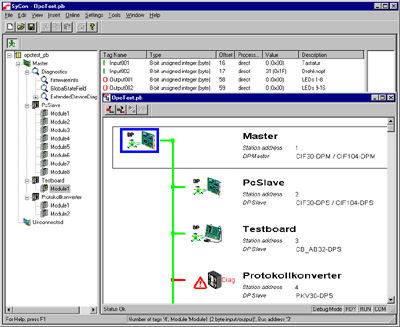
SyCon System Configuration

Figure 11-25: SyCon System Configuration

Concept Link IconSee Also


Stay Connected with Kollmorgen

Copyright © 2015 Kollmorgen™